
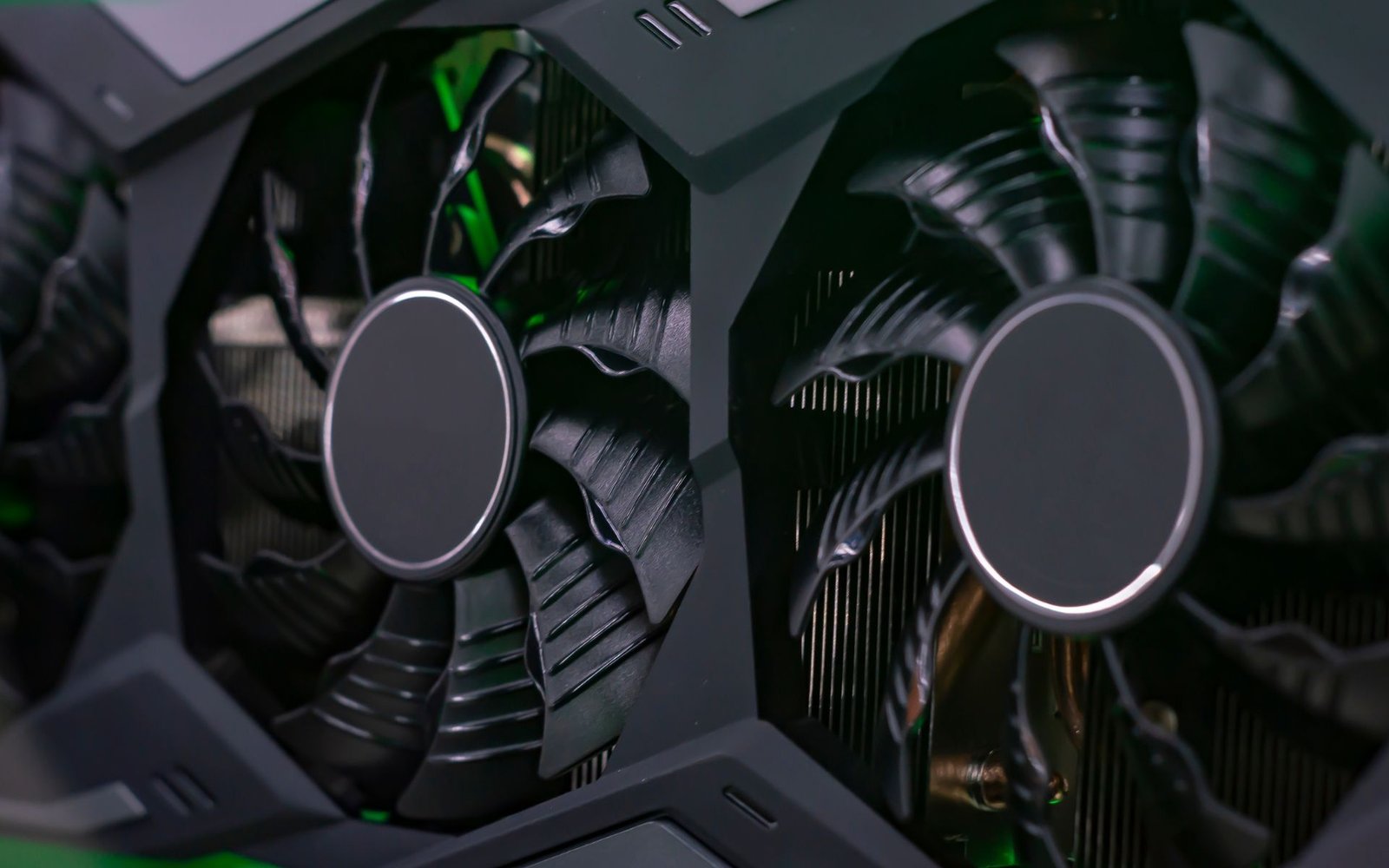
A graphics card is one of the most important components of a laptop, especially for tasks like gaming, video editing, 3D rendering, and even smooth everyday usage. When the graphics card is not working properly, users may experience display issues, performance drops, or system instability. This can be frustrating, particularly when the laptop was previously functioning well.
Understanding the signs of a failing or non-working graphics card and knowing how to fix the issue can help you save time, money, and effort. In many cases, the problem is not hardware failure but software-related issues that can be resolved with the right steps. This guide explains the most common signs and effective solutions to fix a laptop graphics card problem.
Understanding the Role of a Graphics Card in a Laptop
The graphics card, also known as the GPU, is responsible for rendering images, videos, and animations on your laptop screen. It processes visual data and ensures smooth display output.
Modern laptops often come with two types of graphics: integrated graphics and dedicated graphics. Integrated graphics are built into the processor and handle basic tasks, while dedicated graphics cards are designed for high-performance activities. If the system fails to use the correct GPU or if the GPU malfunctions, it can lead to noticeable issues.
Common Signs That Your Laptop Graphics Card Is Not Working
One of the first signs of a graphics card issue is display problems. This may include screen flickering, distorted visuals, unusual colors, or random lines appearing on the screen. These visual glitches often indicate that the GPU is struggling to render images properly.
Another common symptom is poor performance during tasks that require graphics processing. Games may lag, videos may stutter, and design software may crash or fail to load. This usually happens when the system is unable to utilize the graphics card effectively.
Frequent system crashes or blue screen errors can also point to GPU issues. If your laptop crashes while running graphics-intensive applications, it may indicate a problem with the graphics card or its drivers.
Additionally, if your laptop fails to detect the graphics card or only uses integrated graphics despite having a dedicated GPU, this is a clear sign of a configuration or hardware issue.
Causes of Graphics Card Problems in Laptops
Graphics card issues can arise due to several reasons. One of the most common causes is outdated or corrupted drivers. Drivers act as a bridge between the hardware and the operating system, and any issue with them can affect GPU performance.
Overheating is another major factor. Laptops have compact designs, and excessive heat can damage internal components, including the graphics card. Prolonged overheating can lead to performance throttling or permanent damage.
Software conflicts can also cause the graphics card to malfunction. This may happen after installing new software, updates, or incompatible applications.
In some cases, hardware failure due to wear and tear, manufacturing defects, or physical damage may be the root cause. Identifying the exact reason is essential for applying the correct solution.
Checking if the Graphics Card Is Detected
The first step in troubleshooting is to check whether the system recognizes the graphics card. If the GPU is not detected, it may indicate a driver issue or a hardware problem.
Ensuring that the graphics card is properly recognized by the system helps determine whether the issue is related to software or hardware.
Updating Graphics Drivers
Outdated drivers are one of the most common reasons for GPU problems. Updating the graphics drivers can fix compatibility issues, improve performance, and resolve bugs.
Installing the latest drivers ensures that your laptop can handle modern applications and games efficiently. It also reduces the chances of crashes and graphical glitches.
Reinstalling Graphics Drivers
If updating drivers does not solve the problem, reinstalling them can help. Corrupted driver files can prevent the graphics card from functioning correctly.
A clean installation removes any faulty files and ensures that the GPU operates with a fresh and stable configuration.
Switching to Dedicated Graphics
Many laptops automatically switch between integrated and dedicated graphics to save power. However, sometimes the system may fail to use the dedicated GPU when needed.
Manually selecting the dedicated graphics card for high-performance tasks can improve performance and resolve issues related to low graphics output.
Managing Overheating Issues
Overheating can significantly impact GPU performance. When temperatures rise, the system reduces performance to protect internal components.
Improving ventilation, cleaning dust from cooling fans, and using a cooling pad can help maintain optimal temperatures. Keeping the laptop cool ensures consistent GPU performance and prevents long-term damage.
Checking Power Settings
Power settings can influence how the graphics card performs. In power-saving mode, the system may limit GPU usage to conserve energy.
Switching to a high-performance power plan allows the graphics card to operate at full capacity, improving performance and reducing lag.
Resolving Software Conflicts
Certain software or updates can interfere with the graphics card. If the problem started after installing new software, it may be causing conflicts.
Removing or updating such software can resolve compatibility issues and restore normal GPU functionality.
Updating the Operating System
Operating system updates often include improvements for hardware compatibility and performance. Running an outdated system can lead to issues with the graphics card.
Keeping the system updated ensures better communication between the GPU and the operating system.
Testing the Graphics Card Performance
Running performance tests or using monitoring tools can help identify whether the graphics card is functioning properly. These tools provide insights into GPU usage, temperature, and performance levels.
Analyzing this data helps in diagnosing the problem and determining whether the GPU is underperforming or failing.
Checking for Hardware Damage
If none of the software solutions work, the issue may be hardware-related. Physical damage, overheating, or aging components can cause the graphics card to fail.
In such cases, professional inspection may be required to determine whether the GPU can be repaired or needs replacement.
Preventing Future Graphics Card Issues
Preventive measures can help avoid GPU problems. Regularly updating drivers, maintaining proper cooling, and avoiding excessive strain on the system can keep the graphics card in good condition.
Using the laptop in a well-ventilated environment and performing routine maintenance can extend the lifespan of the GPU.
When to Seek Professional Help
If the graphics card continues to malfunction despite troubleshooting, it may be time to seek professional assistance. Complex hardware issues require expert diagnosis and repair.
Attempting to fix hardware problems without proper knowledge can cause further damage, so it is important to consult a professional when needed.
Conclusion
A laptop graphics card not working can disrupt productivity and entertainment, but in many cases, the issue can be resolved with simple troubleshooting steps. Identifying the signs early and understanding the root cause is key to fixing the problem effectively.
From updating drivers and managing overheating to resolving software conflicts, there are multiple ways to restore GPU functionality. With proper care and maintenance, you can ensure that your graphics card performs efficiently and delivers a smooth visual experience.
